
New realtor rule makes it harder for young people to enter the housing market
I sometimes consider changing the name of my blog to "the oldest millenial" because I was born in 1981, which is usually considered the start of the millenial generation. Sometimes people put the start of the millenial generation in 1982, but in either case, I mostly sympathize with millenials so I consider myself an old millenial rather than a young Gen-Xer.
My point is that I'm not young, but I'm young enough to see how much the elder generations have hurt young people. Stagnant wages, rising college prices, burning fossil fuels, and the shredding of the social safety net mean that everyone younger than the boomers has a far more difficult time finding success in life than the boomers did.
So when I learned about the rule changes coming from realtors, it struck a familiar chord. I don't know what the realtors are calling the new rule, so I'm going to call it the "Treat Young People Like ATMs Rule of 2024".
Who are realtors?
Realtors are a professional organization of salespeople who facilitate home sales. They aren't a part of the government. They aren't even a necessary or required part of the home buying process. They are simply salespeople who have banded together in an organized way.
They ostensibly make buying homes easier, but they have a mixed reputation, to say the least. Still, they are usually involved in both sides of any home sale. Both the buyer and the seller each hire an agent and they work together to help the buyer and seller achieve their goals.
The basic dynamics of the arrangement aren't changing.
The Treat Young People Like ATMs Rule of 2024
So what IS changing?
In the past, the fee for each agent came out of the seller's end. Each agent recieved around 2.5% to 3% of the sale price as their fee. So the seller would make 5% to 6% less than the sale price because that amount would go to the agents.
The new rule forces the buyer to pay the fee for the buyer's agent. It also forces the buyer to sign contracts that require them to work with and pay a specific agent.
How does this hurt young people?
Now, in a fair world, this could be seen as fair play. The seller pays the seller agent fees and the buyer pays the buyer agent fees. Fair enough, right?
But context matters.
The context of this rule change is that the people who own homes today didn't have to pay the buyer's agent fees when they bought their homes.
Now, in addition to the 10% to 20% downpayment that first time home buyers must accumulate, they must accumulate an additional 3% to pay their agent. Adding the additional 3% on the buyer means that more young people will be locked out of home ownership even longer.
It also means that homeowners will take a larger share of the pie. It's a wealth transfer from young, non-wealthy people, to old, wealthy people. Yet again, the older generation, rather than helping young people, is changing the rules in order to steal from them.
What's the point?
So why make this rule at all?
It's difficult for me to understand why this rule exists.
It will have the impact of artificially making housing prices look lower than they really are. This will confuse first time buyers.
It will have the impact of allowing home owners to take a larger share of the pie. This is the part where they're using young people like ATMs.
It will also make it easier for investors and the wealthy to scoop up homes at prices that first time home buyers can't afford.
It may temporarily prop up a housing market that is clearly heading for an "adjustment".
Shopping shouldn't be a contractual process
But the weirdest thing about this law, beyond the predictable greed, is that it makes shopping a contractual process. It forces people who want to buy a home to sign a confusing contract that locks them into fees with an agent who, in many cases, adds very little value to the process.
The realtors, as a professional organization, have clearly overstepped what any rational person would consider reasonable. Shopping shouldn't be contractual, and it's unfair to place even more of a burden on first time home buyers and young people.
When did this become okay?
When did older generations start seeing young people as their ATMs? When did older generations switch from supporting younger generations to stealing from them?
The greed embodied in credit scores, stagnant minimum wage, and this new rule is staggering. (Not to mention the unsustainable burning of fossil fuels, which is increasingly hard to ignore.)
As of this writing, I'm 42 years old. I don't consider myself an old person, but as I said at the beginning of this rant, I'm an old millenial. And frankly, I'm ashamed of everyone over the age of 40. How can any older person support putting more of a burden on young people, especially when it comes to housing?
I think that we're turning a corner on many of the issues mentioned in this rant, but regressive policy changes like this are a step in the wrong direction.
Sunflower allelopathy and learning from your mistakes
Since the COVID lockdown I've been spending more and more of my free time in my garden. It feels good to grow green things and the garden always has something to teach me.
I've realized that when you're working with living things, you never get it exactly right the first time. So whenever I try to grow something that I've never grown before, I always plan to fail. It's not that I intend to fail, it's just that I know how hard it is to succeed at growing something new the first time.
But setting expectations correctly doesn't mean that my failures don't surprise me and that they aren't great learning opportunities.
This year, I wanted to grow corn for the first time. So I read tutorials and watched youtube videos. I ordered high quality seed, and I thought I had a good idea what I was doing.
For instance, I learned that corn is wind pollinated. That means that the pollen actually has to fall down onto the silks, which will develop into the delicious ears of corn. For this to work properly, the corn has to be planted in a block, and that block has to be reasonably sized.
Since I'm gardening in the middle of the city, I had to carve out a new space for it. In the fall I dug out a section of my backyard and prepared the soil. In January I planted peas there so that they could do their nitrogen-fixing thing in preparation for the corn. I harvested the peas in May then I seeded the corn in dense rows.
I thought that maybe, just maybe, I could pull this off. Maybe I had grown enough as a gardener that I could actually get it right the first time.
Then the corn started coming up. Kind of.
It started emerging from the soil at the front of the bed, but not at the back, and I couldn't figure out why. I had watered evenly and deeply when seeding, then lightly for a week. Still the plants emerged slowly and unevenly.
In fact, they seemed to struggle more toward the back. Close to the sunflower.
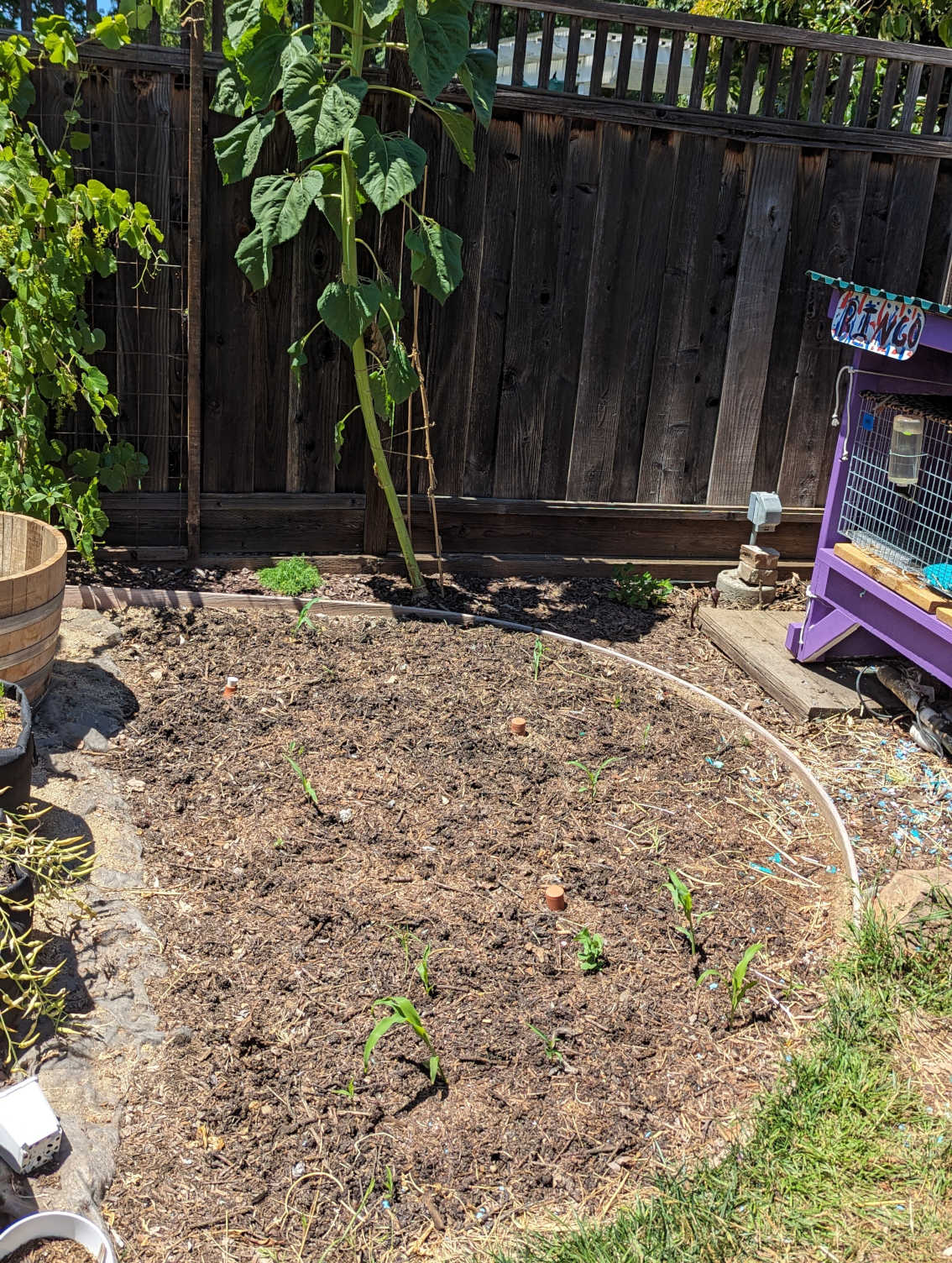
I knew that sunflowers were allelopathic. Allelopathic plants use various strategies to prevent other plants from growing nearby. A fellow gardener had told me that sunflower seeds were allelopathic. That's why nothing grew under his birdfeeders. So as long as I didn't let the seeds fall, then I could plant sunflowers near other plants. Right?
Well, no. As it turns out, I misinterpreted what that gardener said. Yes, sunflower seeds are allelopathic, but so is all the rest of the sunflower. Every bit of the plant exudes chemicals that will prevent seeds from germinating properly or growing well. So the roots of my sunflower were digging into my corn bed and exuding chemicals that prevent my corn from developing normally.
And the worst thing is that it's too late to do much about it. I could dig out the sunflower before it flowers, till the soil, and heavily amend it. Then if I replanted the corn I might have moderately more success, but the allelopathic chemicals would still be there. And it's getting late in the season to start new corn. And that sunflower is 10 feet tall and still growing!
So, even with several years of gardening experience and learning, I managed to fail at growing corn the first time I tried it. I might harvest a semi-developed ear or two from my plot in a few months, but I won't get very much.
And that's a shame.
But at least I'll know better next year. I need to be very strategic about where I plant my sunflowers. Sunflowers seem to play nice with established plants, but they aren't so nice to young plants. I used to only plant sunflowers in my front yard, with established, decorative, native plants. I plan to return to that strategy.
As for corn, well, I'll try again next year. And this year I can go hard on the other two sisters. The squash and beans will have to make up for the failed sister!
Goodbye Gatsby! Hello Eleventy!
For the last few years, I had been running this blog using Gatsby. In general, I liked Gatsby. I liked that it was so simple up front, but had such deep complexity under the hood. I liked that it supported React out of the box. I liked that it could generate websites in so many different ways.
I liked it enough that I made my own minimalist blog starter called Empress, which was a fully featured blog based on the tutorial but with several key features added. I used that for this blog for several years and I liked it.
But man, the leadership of Gatsby was bad. They took it in such weird directions. They tried and failed at so many weird features that the documentation, and the product itself just became a dumping ground.
It really went off the rails when they created Gatsby "themes" that had nothing to do with the colloquial use of "themes". Themes were really more like plugins, but they were already using that term, too. So it was a hot mess, and soon enough the feature seemed to disappear from the docs and from existence.
Then they were bought by Next. I still don't understand that acquisition. Next.js is a good product with sensible leadership. I liked using it at my prior job, and I considered using it for this site, but it was just overkill.
So when I could no longer navigate the crazy web of dependencies to upgrade my blog to the latest version of Gatsby, I essentially stopped writing. I was just so frustrated with it.
Until this weekend, when I decided it was time to change.
Hello, Eleventy!
I decided to switch to Eleventy mostly because it's the static site generator with the most hype right now. Sometimes it's good to try the tech that is currently being hyped. It's good to stay up to date and have that line on your resume.
But also, Eleventy is a good product. I planned on spending a few weekends getting my blog switched over, but it only took me a few hours on Saturday, Sunday, and Monday to get it 95% switched over. There are still a few minor bugs here and there - don't check the title tags on tag pages, and ignore the reverse chronological sorting in some places - but in general the switch was very easy.
I've been around web programming since the 1990s, and Eleventy feels like a return to an older way of working, but with some of the good infrastructural tech we picked up along the way. Like now I'm writing in markdown, and I don't need to run MySQL on my server, nor do I even need to run a traditional "server". I can just host my static site on S3, and use GitHub Actions to deploy it, just like with Gatsby.
And I've heard some of the blowback against Jamstack architecture sites in the last few years. It's why I briefly considered using Next for this. But I still think JavaScript + API is the best/fastest/cleanest way to run a website, whether it's a blog or something more complex. I don't have an API for this site, but I feel like I could attach one without too much trouble if the need arose.
I do wish that I could use React. I saw some people try to get Eleventy working with React experimentally, but I didn't see any updated package to do it. Nunjuks and markdown are okay for the basics, but I do think that a true component-based architecture is ultimately a cleaner way to build UIs than a template based architecture.
Until next time...
So I'm going to give Eleventy a shot for now.
But we all know that those of us who still quixotically maintain personal blogs in 2024 are on a perpetual upgrade cycle. We all know that no "upgrade" is the final upgrade.
I wonder what I'll "upgrade" to in a few years? Maybe Wordpress will come back around?
My Electrification Budget
2023 was the hottest year in human history, and 2024 looks like it's going to be even hotter. This has everyone wondering what they can do to lower their carbon footprint.
If you're thinking about electrifying your life, then you aren't alone. Millions of people are starting to rid their lives of gas burning cars and appliances, and replacing them with safer, more efficient electric options.
Still, there are a lot of barriers to electrification, and budget confusion is a big one. In this post, I'm going to walk you through our electrification journey so you can get an idea of how much it cost for us, and maybe avoid some of the mistakes we made.
Small home lifestyle
We live in a small house. This was a choice partly dictated by where we live; Silicon Valley is one of the most expensive places in the world, so we could only afford a small house. But it's also something dictated by energy efficiency; it's much more energy efficient to only maintain as much house as you need.
Our house is 990 square feet. This makes it an especially good example for other people to look at. Round it up to 1000 square feet, then the math is easy for figuring out how electrifying your home might relate to ours.
Still, we live in one of the most expensive parts of the country, so you might want to divide by some cost of living. The 2023 median home price in San Jose was $1,100,000 million according to realtor.com. The median home price in the us for the same time was around $412,000. So you might reasonably divide this total in half for your area.
The total cost
These prices include the cost of installation, but they don't include rebates, and again, this is from one of the most expensive parts of the country. Also, we generally didn't purchase the cheapest of anything; we opted for the devices we wanted rather than the most affordable ones.
This work was done over more than five years from 2018 to 2024, so this table was created from memory, and most of the costs are rounded to the nearest thousand dollars.
| Item | Cost |
|---|---|
| Initial solar | $8,000 |
| More solar plus battery | $25,000 |
| Heat pump water heater | $8,000 |
| Induction stove | $2,000 |
| Electric vehicle | $45,000 |
| Heat pump HVAC | $17,000 |
| TOTAL | $105,000 |
As you can see, electrifying our lives wasn't cheap. Even with the incentives offered by local and national governmental organizations, we still paid nearly $100k to go green. Obviously, this isn't practical for most people. Fortunately, we did make a few mistakes that made this a bit more expensive than what most people will pay.
Mistakes and savings
The biggest mistake we made was adding solar to our garage in the initial installation. The problem is that we eventually wanted to add a battery in order to ensure we aren't hitting the grid. Well, the battery has to be connected to our house for it to be useful, but we added the solar to our garage, which is on a separate electrical panel. So we either had to trench out to our garage in order to connect the panels to our house, or we had to install a new solar setup on our house. The latter ended up being cheaper. We should have just installed our initial set of solar panels on our house.
The biggest cost on this chart is the electric car. We bought an Ioniq 5 because we thought that it had the best range at the price when we bought it. Still, you can get good used electric cars for less than half that cost. On Carvana, there are 2023 Hyundai Konas listed at under $20k. Generally, you shouldn't worry about range. Most people drive less than 40 miles a day, and modern electric cars will charge more than that overnight.
So the total cost here is high, even for California. If you eliminate the battery and install your initial solar setup correctly, then you can save $25k, bringing the total cost down to $80k. If you then buy a used EV, you can shave off another $25k, bringing the total cost down to $55k.
$55k is still a lot of money, but when you add government incentives, I think it's possible for anyone who owns a home.
Bay Area Oktoberfest Events Calendar 2023
Well, the 2023 Oktoberfest season for the Bay Area is as packed as ever. This year I decided I wanted to attend as many Oktoberfest events as I had the stomach for. So I did what any self-respecting beer nerd would do: I made a calendar, then I made a schedule. Here's the result of my labors. If you see me at these events, please come lift a glass with me!
